Hotspots and Interactive Images in Framer: Smart Components, Embeds, and the Direct Route
Framer is design and development in one. How to add hotspots to images — with Smart Components, embed code, or external tools.
Framer as a visual editor
Framer is both a visual design editor and a web builder. To add an image with clickable regions there, you have several options — from a code component to a simple HTML embed.
Method 1: Build your own Smart Component with hotspots
In Framer's Designer you can build your own Smart Components with variants (different states). This lets you implement hotspot images without external tools — comparable to the Webflow way, just with Framer logic.
Set the image as a frame background, lock its size. For each hotspot, place a small frame absolutely — for example a 32-pixel semi-transparent circle. For each hotspot create a tooltip frame (hidden by default). Via the Interactions panel: hover trigger on the hotspot, on hover the tooltip frame fades in. Optionally a click trigger that navigates to another page or opens a modal.
With practice, components like this come together in 10 to 15 minutes. They're fully responsive if you set position in percent and scale the image relatively.
Method 2: Code Component for more flexibility
For more advanced work, you can write your own Code Component in React inside Framer. That allows arbitrary logic — hover tooltips, animated transitions, database-driven content. The full developer variant. More effort, maximum flexibility.
Method 3: Embed element for external tools
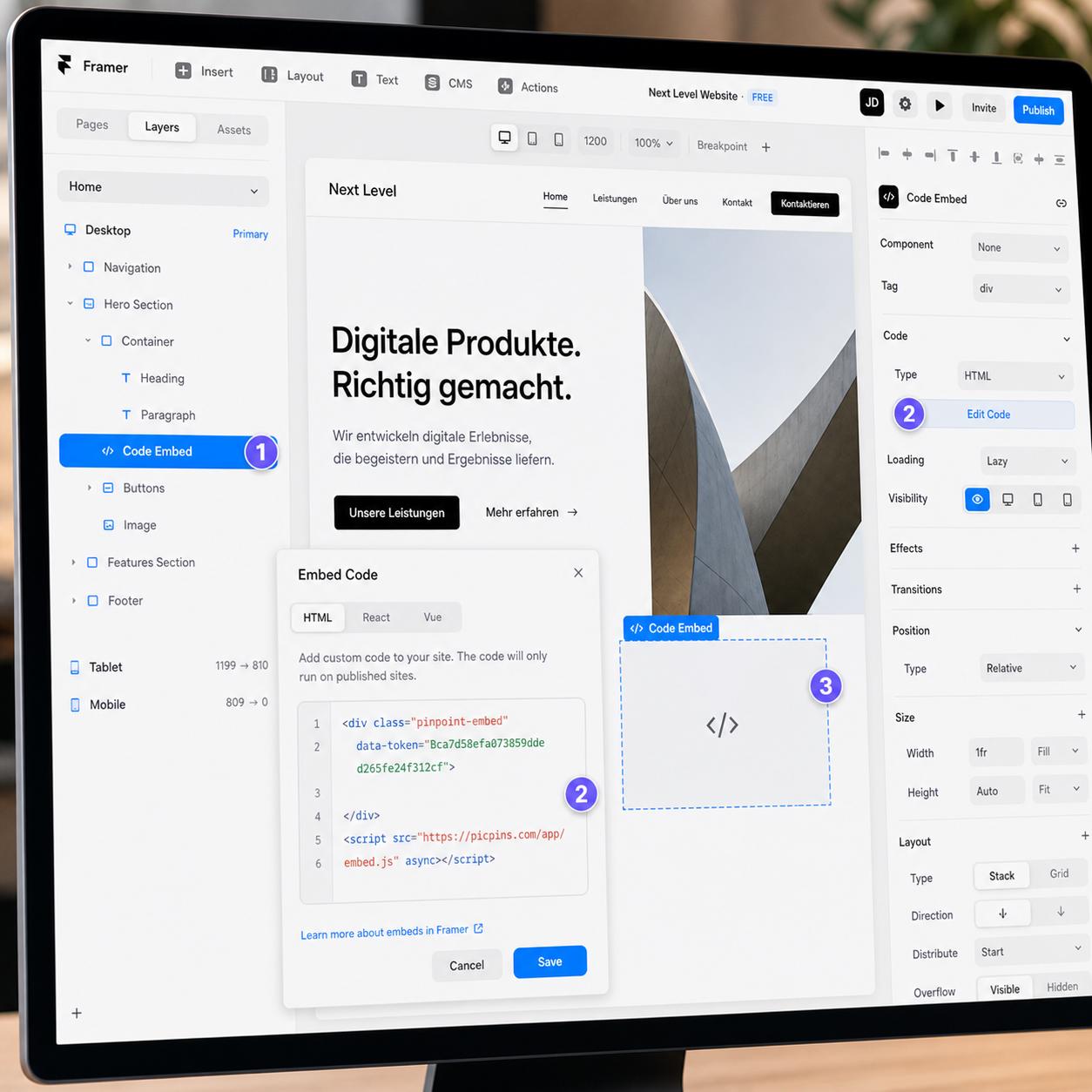
The fastest path: the built-in Embed component. In the Insert panel select the Embed element, drag it onto the canvas. In the Properties panel on the right click HTML and paste the code. Click Publish — the embed renders in the Designer preview.
Inside the embed element you can place a classic HTML image map, an iFrame with a preview URL, or a full embed code from picpins.
External tool: example picpins
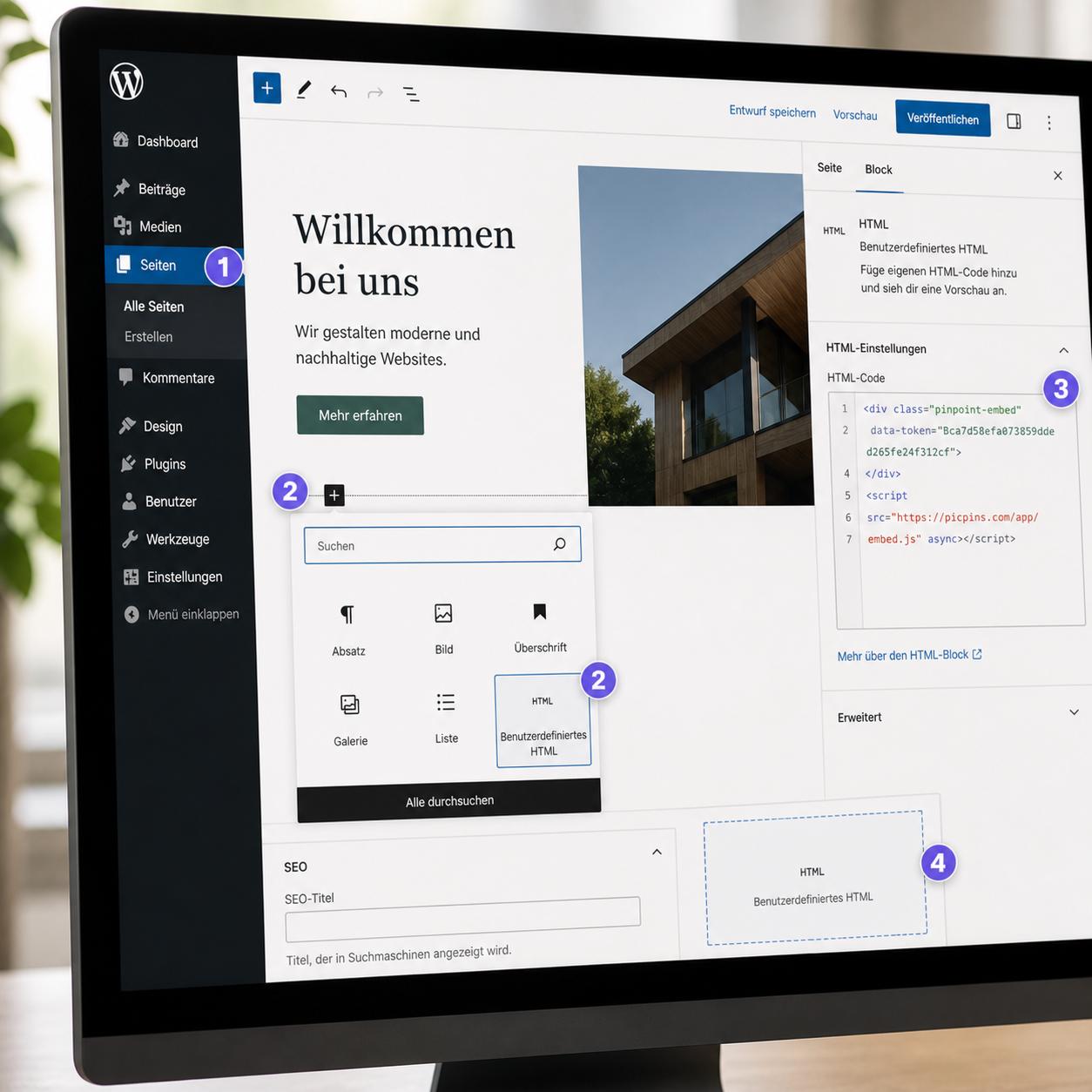
With picpins it goes like this: upload the image at picpins.com, place markers, fill tooltips. Copy the embed code. In Framer insert an embed element, paste, publish. In Framer's Designer the embed loads pooled — sometimes you need to restart the preview once. On the published site everything works as expected.
Which method when?
Smart Component or Code Component: when the hotspot image is part of your design identity, the image stays unchanged for long, and you want full control over animations and behavior.
Embed with external tool: when you want to be done in minutes, want to change the image later without reopening the Framer editor, or want to use the same image on multiple platforms.
Performance note
Framer pages are statically generated and very fast. Embeds additionally load an external script — for a single hotspot image, no problem; for ten on one page, measurable. If performance is critical, Smart Components are the clean choice.