Interactive Images in Wix: Hover Boxes, Hotspots, and HTML Embeds
Wix has its own tools for clickable image regions. Where they're enough, where they fall short, and how to use the HTML embed element for any solution.
What Wix gives you out of the box
Wix is built as a drag-and-drop website builder — most things work without code. But when you need an image with multiple clickable regions and tooltips, you hit the editor's limits. Here are the realistic options.
Option 1: Hover box with absolutely positioned elements
Wix knows the concept of a hover box. You can layer other elements over an image — for example, transparent buttons with their own hover effects. That's essentially an image map built with Wix tools.
How: drag the image onto the page, lock its position. Place transparent buttons or empty boxes on top — one per clickable region. Give each button a link or wire it to open a lightbox. Add hover effects if needed.
This works reasonably well, but with one catch: Wix layouts aren't 100% responsive. Without care, the mobile view shifts everything. Wix offers a separate mobile editor where you can reposition the buttons manually.
Option 2: Pro Gallery with click-to-action
Pro Gallery is Wix' advanced gallery element. It supports descriptions, click actions, and lightbox popups. If your use case is showing an image and revealing detail info on click — without several independent clickable regions — Pro Gallery is often enough.
What it can't do: multiple independent hotspots on the same image, each with its own tooltip. For that you need the hover box method or an external embed.
Option 3: HTML embed element
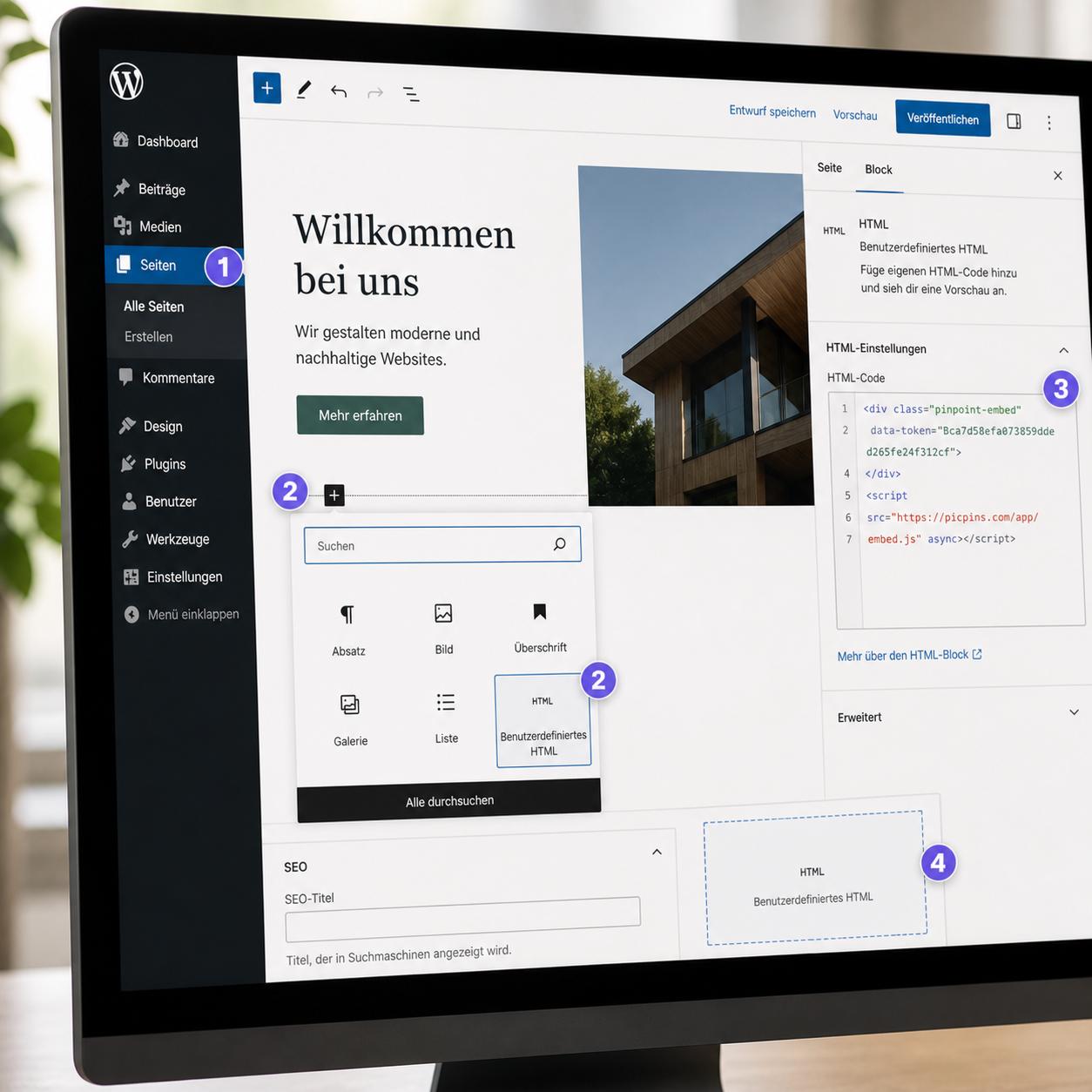
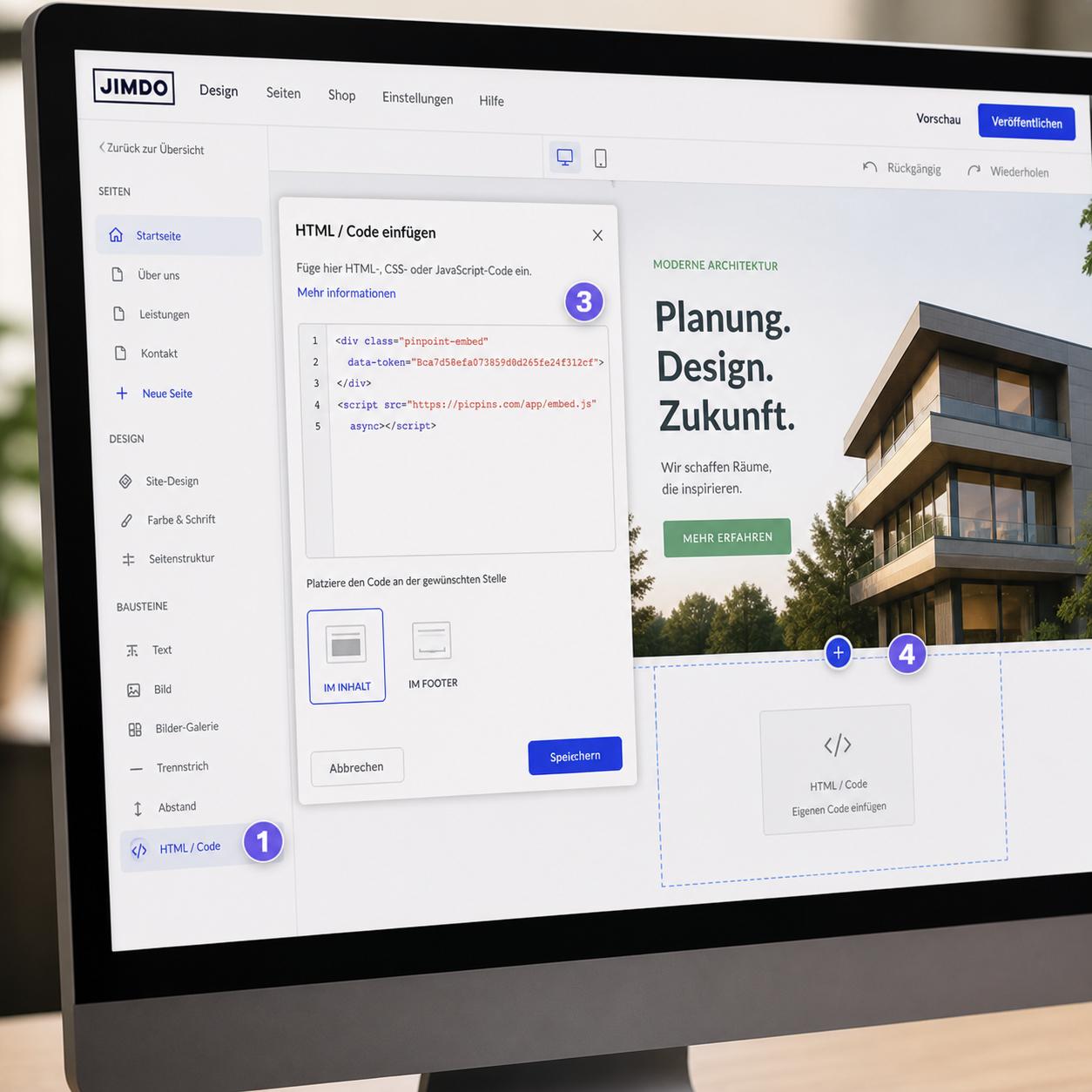
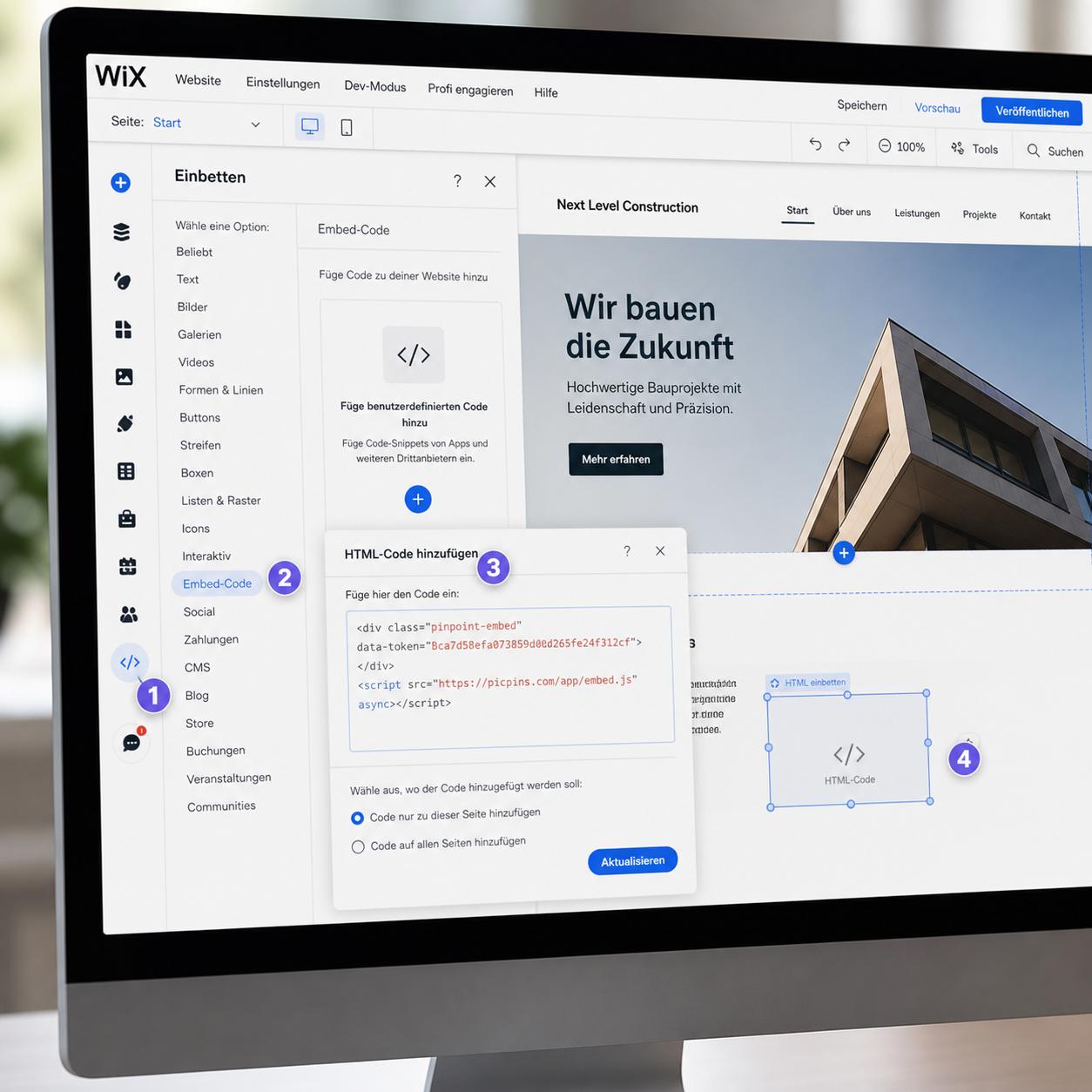
This is where it gets flexible. Wix lets you embed arbitrary HTML in a dedicated element. In the editor click "+ Add" on the left, choose "Embed → Embed HTML", drag the element onto the page. Click the element, choose "Enter code", and paste an HTML image map, an iFrame, or an embed code.
The embed element loads content in an iFrame. With tools like picpins that use a responsive aspect-ratio, it works well because they handle sizing themselves.
Option 4: External tools via embed
If you build interactive images regularly, a dedicated tool like picpins makes sense. Build the image there, copy the embed code, paste it into Wix' HTML embed element. The benefit: tooltips, hover effects, and multiple views of the same image come built in and are automatically responsive.
What to keep in mind
Wix only allows one embed per HTML element. For several interactive images on a page, you need several HTML embed elements. Also: in the free Wix tier, HTML embedding is restricted — you need at least the Combo plan for the HTML element to work reliably.
Mobile-first thinking
Touch interaction doesn't forgive 20-pixel hotspots. Plan your clickable areas at a minimum of 44 pixels per side — that's Apple's and Google's recommendation for touch targets. Anything smaller frustrates mobile users more than it helps.