Making Images Interactive in Jimdo: What Works, What Doesn't, and How to Solve It
Jimdo is built for simplicity — interactive images still work. The widget element plus a bit of HTML gets you any image map you need.
What Jimdo can't do
Jimdo is built for lean sites without much tech. That's exactly why the editor lacks a native feature for clickable image regions. It still works — via the widget element. Here are the options.
Prerequisite: the right plan
Jimdo comes in two lines: the classic Creator and the newer Dolphin/Play editor. In the Creator tier, HTML embedding works well. In the Play tier it's limited or fully locked away depending on the package. Before you start, check your own account to see whether the widget element appears under "Add element" at all.
Method 1: Widget with HTML image map
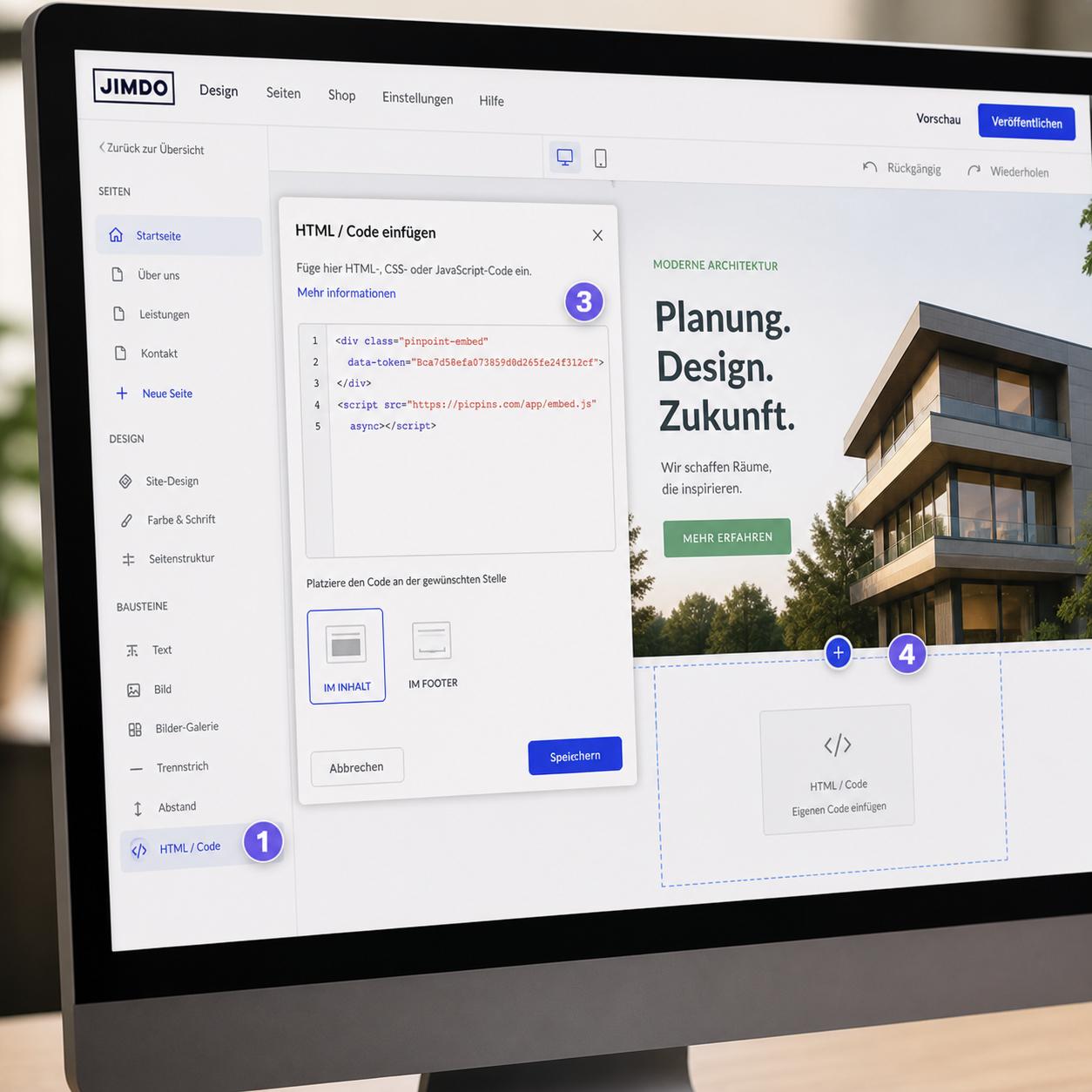
In the Creator editor you can add a new element of type "Widget / HTML" on any page. The HTML code goes in there. Scroll to the desired spot, click "+ Add element", choose "Widget / HTML", paste the image map code, save, then check in the preview.
The widget renders the code directly in your Jimdo page. The HTML image map works but, as everywhere, isn't responsive — on mobile the coordinates no longer match.
Method 2: Link the image directly (for simple cases)
If your image needs just one clickable area — a single link on the whole image — you can do that in Jimdo through the standard image element: insert image, click the image, enter "Link" in the edit menu. No image map needed. For multiple hotspots this isn't enough.
Method 3: External tools embedded as a widget
Tools like picpins build the interactive image outside Jimdo and deliver an embed code. You paste it into the widget element like an HTML image map — except the result is automatically responsive and can carry multiple tooltips with images, buttons, and videos.
Example flow with picpins: at picpins.com upload an image, place markers, fill tooltips. In the dashboard click "Embed code", copy. In Jimdo insert a new widget element, paste, save.
Things to watch in Jimdo
The editor loads widgets in a sandbox — meaning some features don't appear in edit mode. Only after saving and switching to preview does the embedded content render correctly. Don't worry if the widget element looks empty in the editor.
Also: Jimdo sometimes compresses uploads heavily. If you use an HTML image map and host the image through Jimdo's media library, the coordinates may shift because the image ends up at a different size than expected. With external tools the image lives at the provider and that problem disappears.
Bottom line for Jimdo users
Jimdo is designed for simple websites. For a single interactive image, the widget method is enough. If you regularly need interactive content, an external tool saves a lot of manual work — and you avoid recalculating HTML coordinates for every new image.