Interactive Images in Ghost: HTML Card, Embed, and the Direct Path to Hotspots
Ghost is built for readability — and still offers a simple way to make images clickable. The HTML card is your friend.
Ghost and the HTML card
Ghost is focused on writing — lean editor, beautiful typography, good performance. Clickable image regions aren't the core focus, but they integrate without trouble. Here are the options.
Prerequisite: HTML card enabled
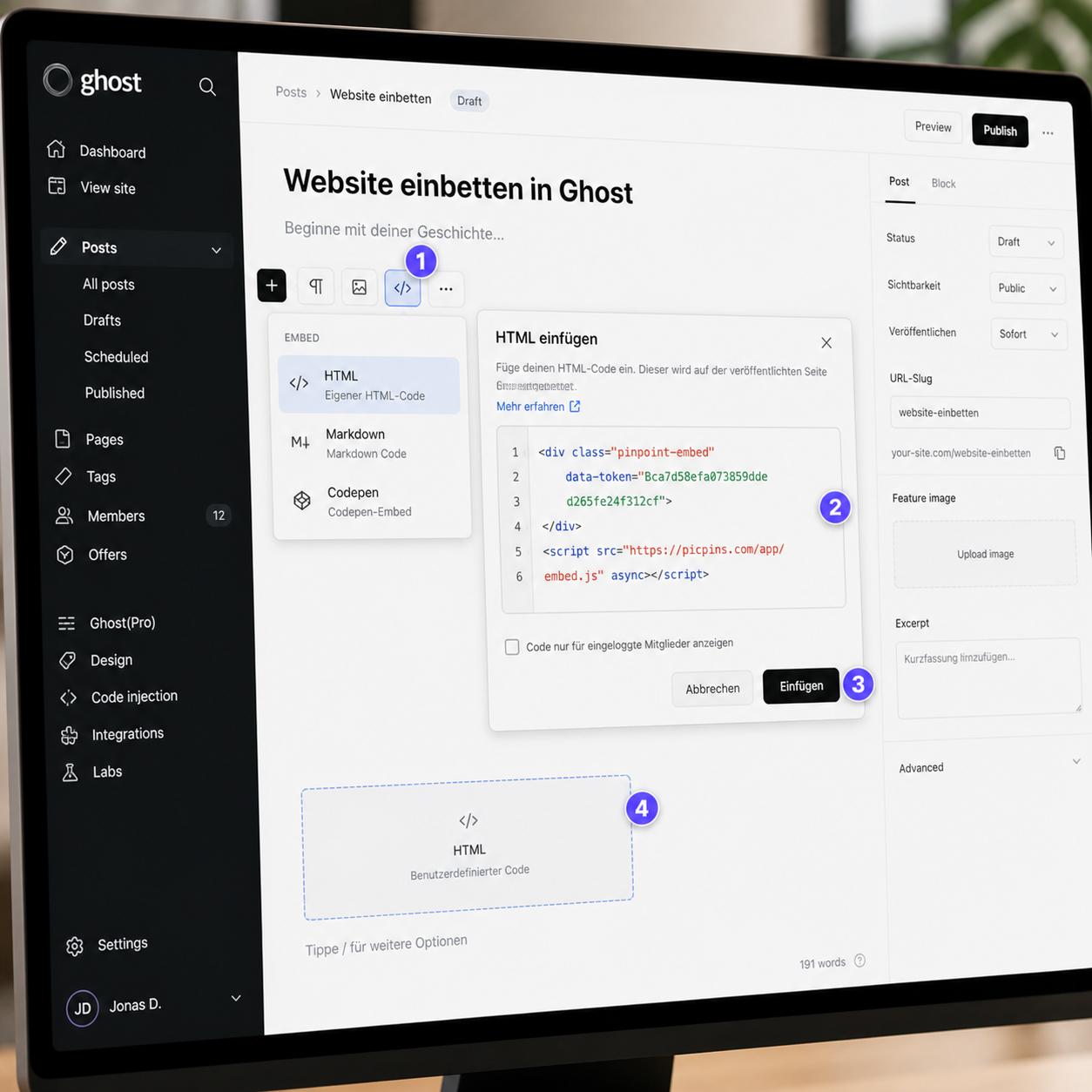
In the Ghost editor (Koenig), clicking the plus icon opens a menu of block types. One of them is the HTML card. This card allows arbitrary HTML directly inside the post.
Method 1: Classic image map in the HTML card
In the post editor, start a new line at the desired spot. Click +, choose HTML. Paste the image map code into the code field. Click elsewhere in the editor — the card renders the HTML preview. Save or publish the post.
This method works in every Ghost theme. As always: image maps aren't responsive, so be careful on mobile.
Method 2: Embed code from external tools
If you use picpins, the embed code goes into the same HTML card. Tool of choice: upload image, place markers, copy embed code. In Ghost's post editor + → HTML. Paste the code, leave the card, save.
Ghost renders HTML cards without further filtering — the embed runs through directly. Even script tags aren't stripped, unlike in many other CMS.
Method 3: Theme adjustment with custom code
In the Ghost admin under Settings → Code injection you can load JavaScript site-wide. If your hotspot tool needs a one-time script across multiple posts, this is the place. picpins doesn't need this — its embed code loads the script itself.
Image source: Ghost CDN or external?
Ghost stores post images in its internal storage. Good for load times, but problematic if you build an image map and later replace the image (Ghost changes the path). With external tools the image lives at the provider — the URL stays stable as long as you don't delete the project.
AMP and interactive images
Ghost supports AMP for posts. AMP pages have strict limits on JavaScript and arbitrary HTML. With AMP active, external embeds usually don't show in the AMP version of your post — visitors from Google AMP results see the image without hotspots. Options: disable AMP for affected posts, or offer an alternative presentation with Markdown links.
Theme CSS
Some Ghost themes wrap content in a fixed-width container. If your interactive image looks too small as a result, set the image to width:100%; max-width:none; in the HTML card or override the content container for HTML cards in the theme CSS.
Recommendation for Ghost
Ghost is primarily a blogging tool. For blog posts with occasional interactive images, the HTML card plus embed code is enough. If you regularly produce complex hotspot content, a dedicated tool like picpins is the clean choice — build the interactive image once, embed it, and update it without ever reopening the post.