Image Maps and Interactive Images in Joomla: Editor, Modules, and Embeds
In Joomla, everything depends on the right editor. How to add clickable image regions via JCE, TinyMCE, or a custom module.
Joomla's HTML freedom
Joomla has been a reliable CMS for years — and it offers more HTML freedom than most website builders. That's exactly why clickable image regions are comparatively easy to set up, as long as you know where to look.
Which editor is installed?
Joomla ships with TinyMCE by default. Many installs add the JCE editor because it's more flexible. Both support an HTML source view — but they treat HTML differently. JCE is fairly permissive by default and leaves image map code intact. TinyMCE can filter configured tags: image map tags like map and area are in the default configuration, but may be stripped depending on the Joomla profile.
If your image map code disappears after saving, it's almost always the editor filter. In the Joomla backend under System → Configuration → Global Configuration → Text Filters you can set per user group which tags are allowed.
Method 1: Image map in the article editor
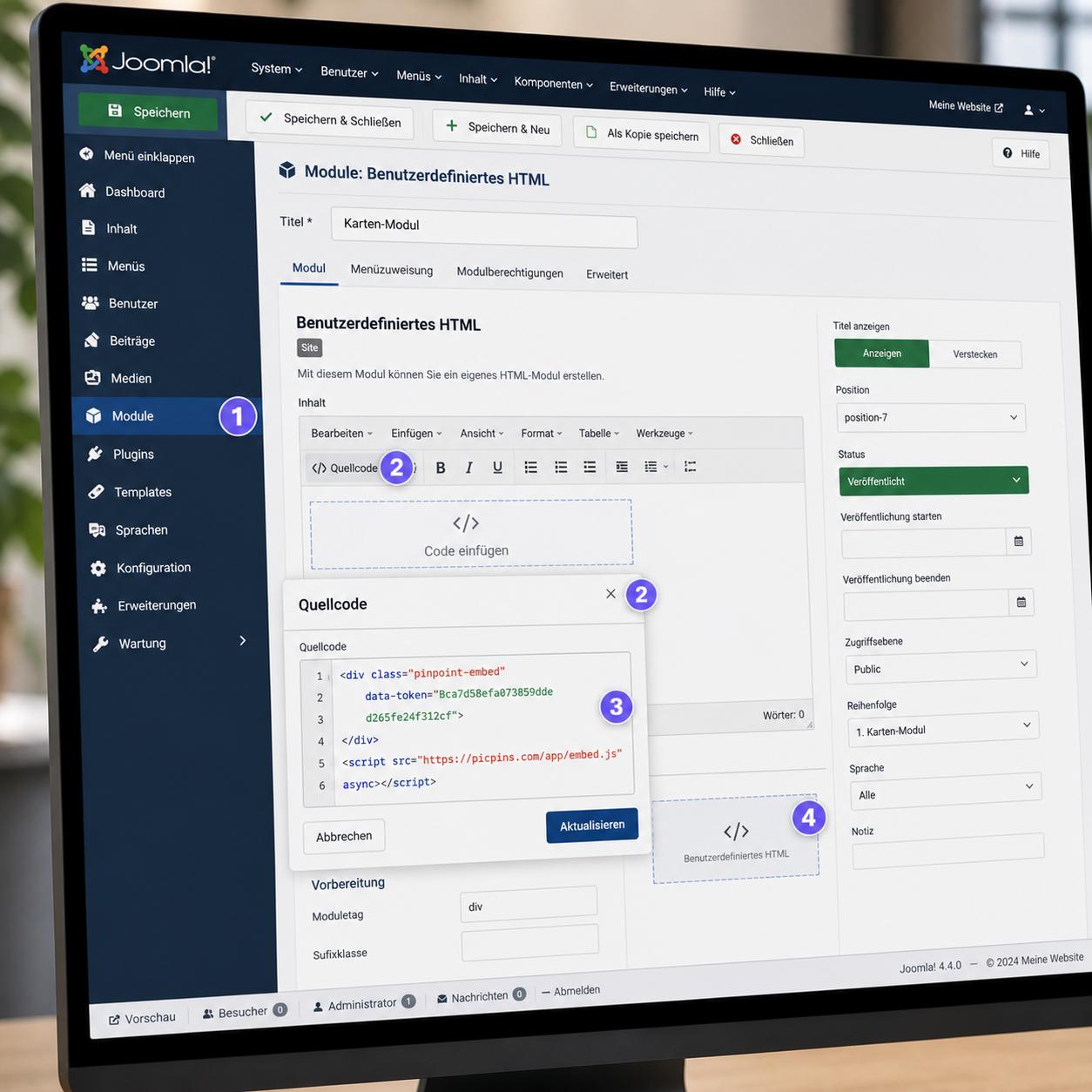
Open the article, click HTML or </> in the editor (icon varies). Paste the image map code. Switch back to visual view, save. Check the frontend.
Method 2: Custom HTML module
If the interactive image should appear not in an article but in a sidebar, footer, or a fixed position, a "Custom HTML" module is the right choice. In the backend go to Content → Modules, create a new module. Pick module type "Custom HTML". Switch the editor to HTML source view, paste the image map or embed code. Assign a position, save.
Custom HTML modules have their own filter settings — check whether your HTML tags pass through.
Method 3: External tools via embed
If you want to skip the filter wrangling, embed an external tool like picpins. Such tools deliver HTML that runs inside a container and doesn't need to survive Joomla filters — provided script tags are allowed.
Workflow with picpins: at picpins.com upload the image, define markers and tooltips, copy the embed code. In Joomla open the article or Custom HTML module in HTML source view, paste the code. If the code is missing after saving: in the editor configuration under "Allowed elements" make sure script isn't in the deny list.
Extensions from the JED
The Joomla Extensions Directory (JED) lists several specialty extensions for image maps and hotspots. Many are written for older Joomla versions and not all are actively maintained. Before installing: check the last update and Joomla version compatibility — otherwise the next Joomla update brings trouble.
SEO note
For image map areas, set meaningful alt and title attributes. Search engines read them, and screen readers depend on them. For embedded third-party solutions, the content usually lives inside an iFrame or container — the SEO effect there is limited, but the touch-device experience is solid.