Squarespace and Interactive Images: Code Block, Image Block, and Embed Compared
Squarespace doesn't ship its own hotspot editor. How to still add clickable image regions — with the code block or external tools.

Squarespace and the hotspot
Squarespace is designed for clean templates and visual consistency. Hotspots and image maps aren't part of the standard editor — but the code block gets them onto the page anyway.
Prerequisite: which plan, which version?
Squarespace comes in two versions: 7.0 and 7.1. In 7.1 the code block is available on every plan. In 7.0 you need at least the Business plan for code embedding to work. The Personal plan on 7.0 only allows limited HTML. If you're not sure which version you have: it's in the help menu in the bottom right of the editor.
Method 1: Code block with HTML image map
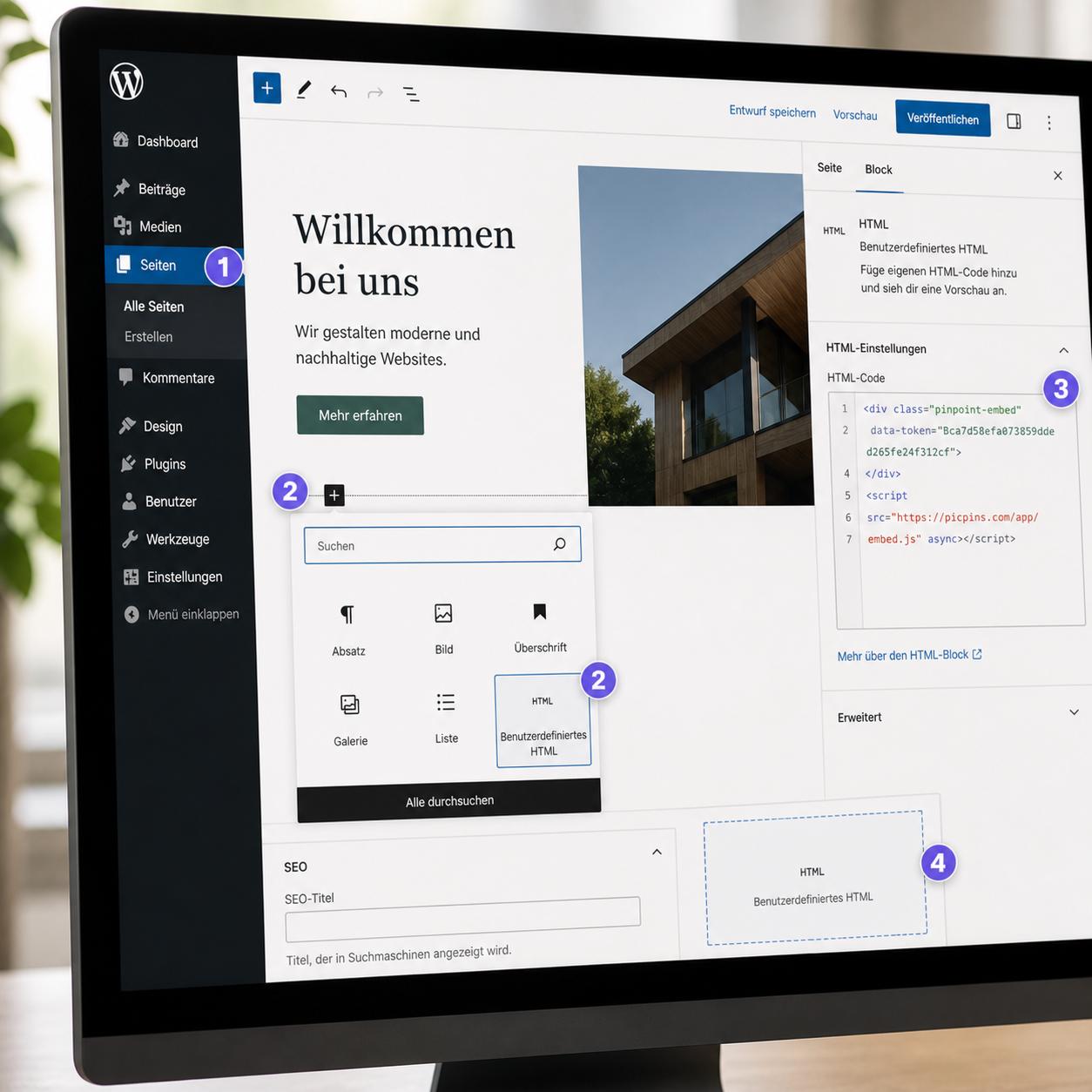
In the editor click "+ Add Block" at the desired spot, choose "Code" — the block lands on the page. Double-click opens the edit window. Set Mode to HTML, leave Display Source off, paste the image map code. Save the block, publish the page. The image map works immediately — same caveat as everywhere: not responsive.
Method 2: Image block with a simple link
If the image needs just one clickable area (a link on the whole image), the regular image block is enough. In the block menu under "Design" you can enter a click-through URL. No image map needed, fully responsive, no code. For multiple hotspots, of course, this isn't enough.
Method 3: Embed block for external tools
Squarespace has a dedicated Embed block in addition to the Code block. It's meant for YouTube, Vimeo, Soundcloud — but it also accepts custom embed URLs. For hotspot tools like picpins the Code block is still the better choice because it allows arbitrary HTML and script.
Workflow with picpins: build image and tooltips at picpins.com, copy the embed code. In Squarespace insert a Code block, HTML mode, paste the code. Save the block, publish the page. The embedded image is responsive, tooltips work on touch devices, and you can change the project later without reopening the Squarespace editor.
Method 4: Site-wide custom code
In the Squarespace backend under Settings → Advanced → Code Injection you can load JavaScript site-wide once. Useful if you use a hotspot tool whose script you don't want to load in every single code block. picpins doesn't need this — its embed code loads the script itself.
Squarespace pitfalls
Squarespace caches aggressively through its CDN. If your code block looks empty after saving, clear the browser cache or open the preview in an incognito window. Also: some Squarespace templates automatically wrap code blocks in a padding container. If your interactive image ends up with unwanted framing, you can override the container via site-wide CSS — usually not necessary.
What we recommend
For a single image with two or three links: HTML image map in a code block. For serious applications with tooltips, images, and multilingual content: external tool via embed. Squarespace provides the platform — the hotspot logic comes from outside.