How to Present Real Estate Online: Interactive Floor Plans and Room Photos
How real estate listings can be presented online so prospects grasp every key detail at a glance — without long descriptions and without 360-degree tours.
Why are classic listings so cumbersome?
A typical real estate listing consists of a series of static photos, a few measurements as bullet points, and a paragraph describing each room in turn. It works, but it isn't intuitive. Someone looking to buy or rent has to scroll back and forth repeatedly, mentally matching photos to the floor plan and trying to piece together a spatial picture. With several listings to compare, this quickly becomes frustrating.
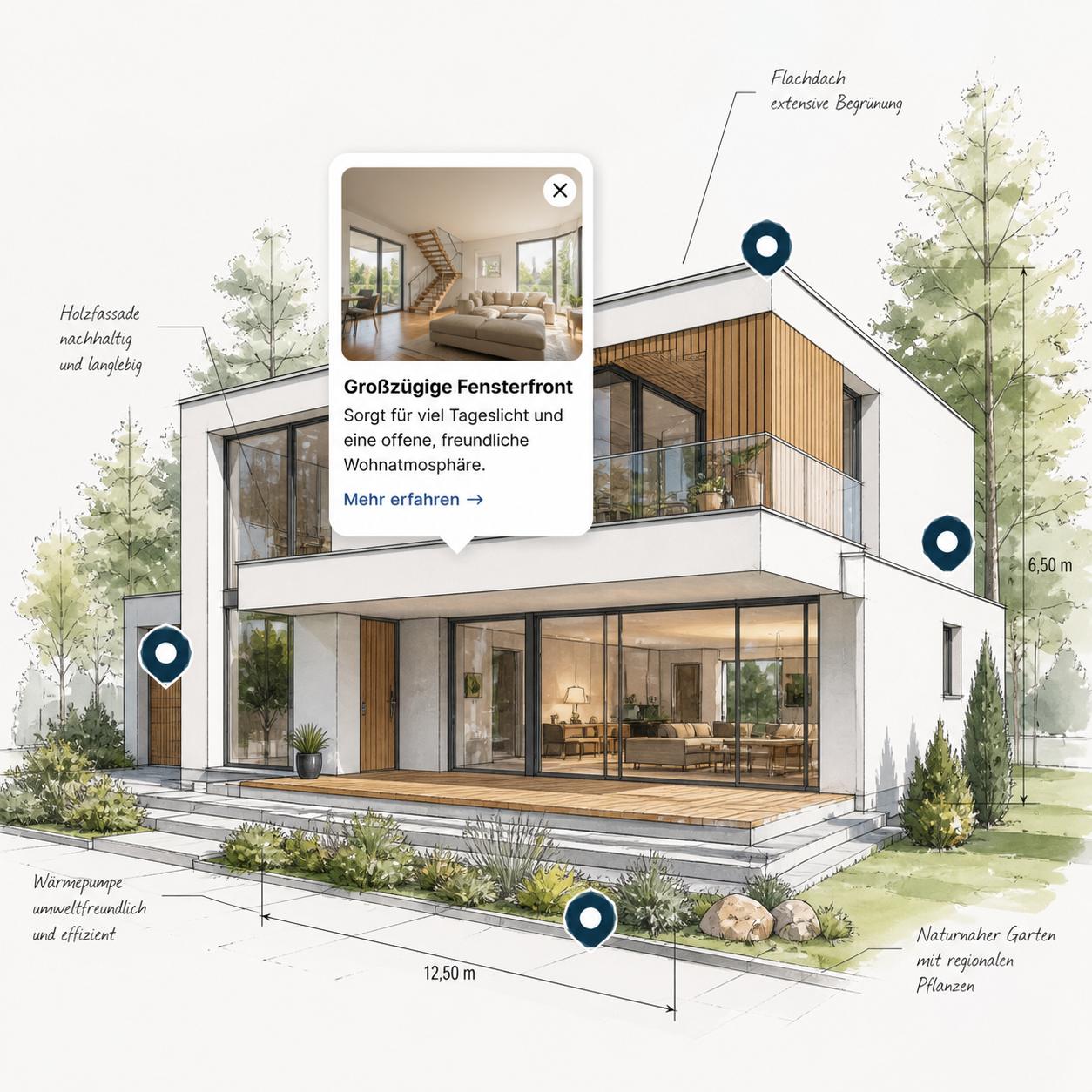
Interactive images take a different approach. Instead of describing each room separately, the prospect clicks directly on a point in the image and immediately sees the relevant information for that spot. This works just as well on floor plans as it does on exterior views or detail shots.
Which images work well as interactive presentations?
Practically anything prospects need to grasp visually. Floor plans benefit the most, since individual rooms form natural anchor points for hotspots. Square footage per room, a photo from inside that space, maybe a note about the heating system — everything finds its place right on the plan.
On exterior views, year of construction, energy efficiency rating, garages, or garden features can each become their own marker. Detail photos work well for highlighting materials: a hotspot on the parquet links to the data sheet for the oak planks, one on the window shows the U-value of the glazing.
How does the process with picpins work?
The workflow is deliberately short. After logging in, a new project is created and the image is uploaded — typically a floor plan as JPG or PNG. The editor then offers a marker tool that places a point anywhere in the image with a single click.
As soon as a marker is placed, a tooltip editor opens. From there it accepts a heading, a short description, a photo of the room, a price tag, or a link to the full listing. For more flexibility, instead of a point, the same can be done with a rectangle, ellipse, or a freehand polygon — useful for highlighting an entire living area on a floor plan in color, for example.
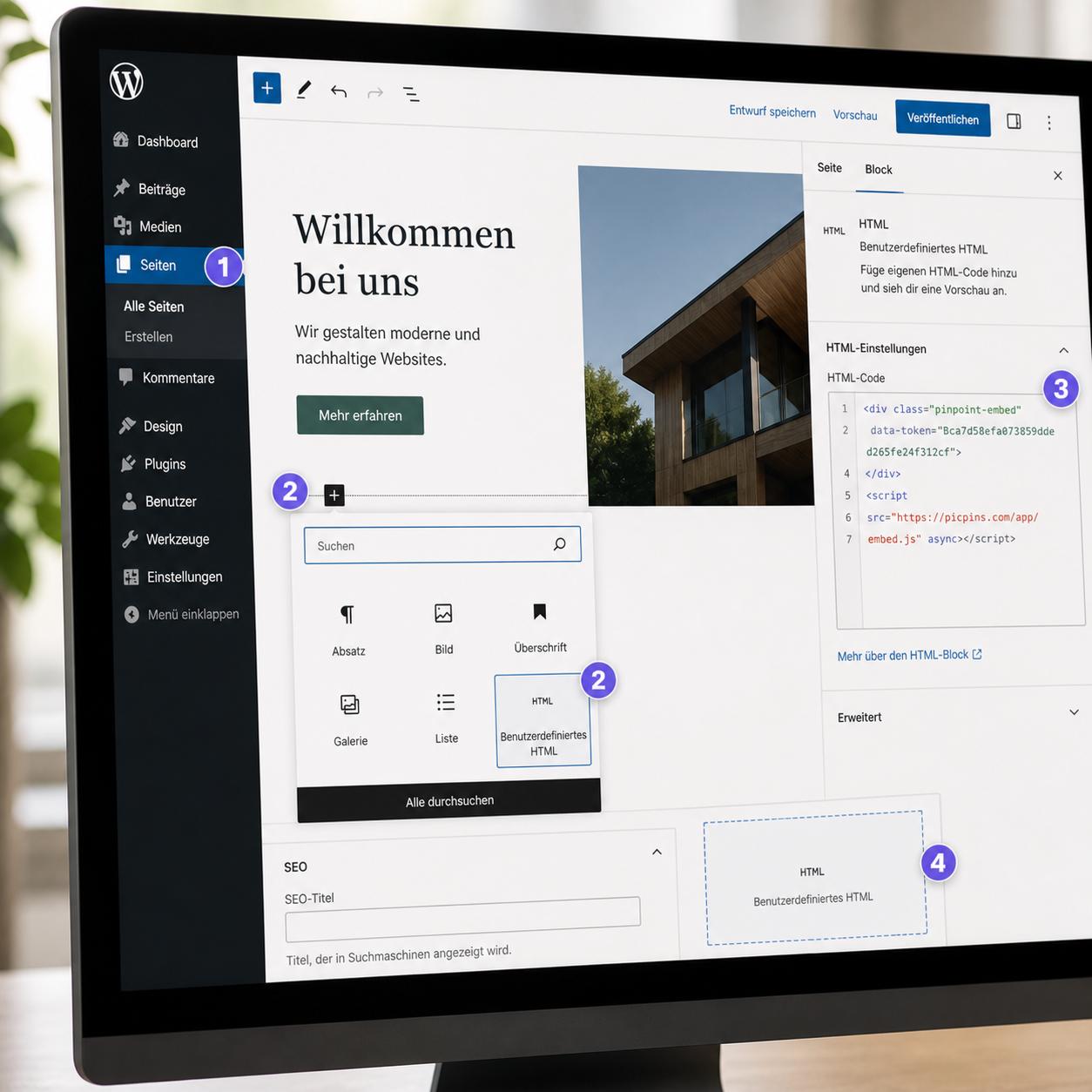
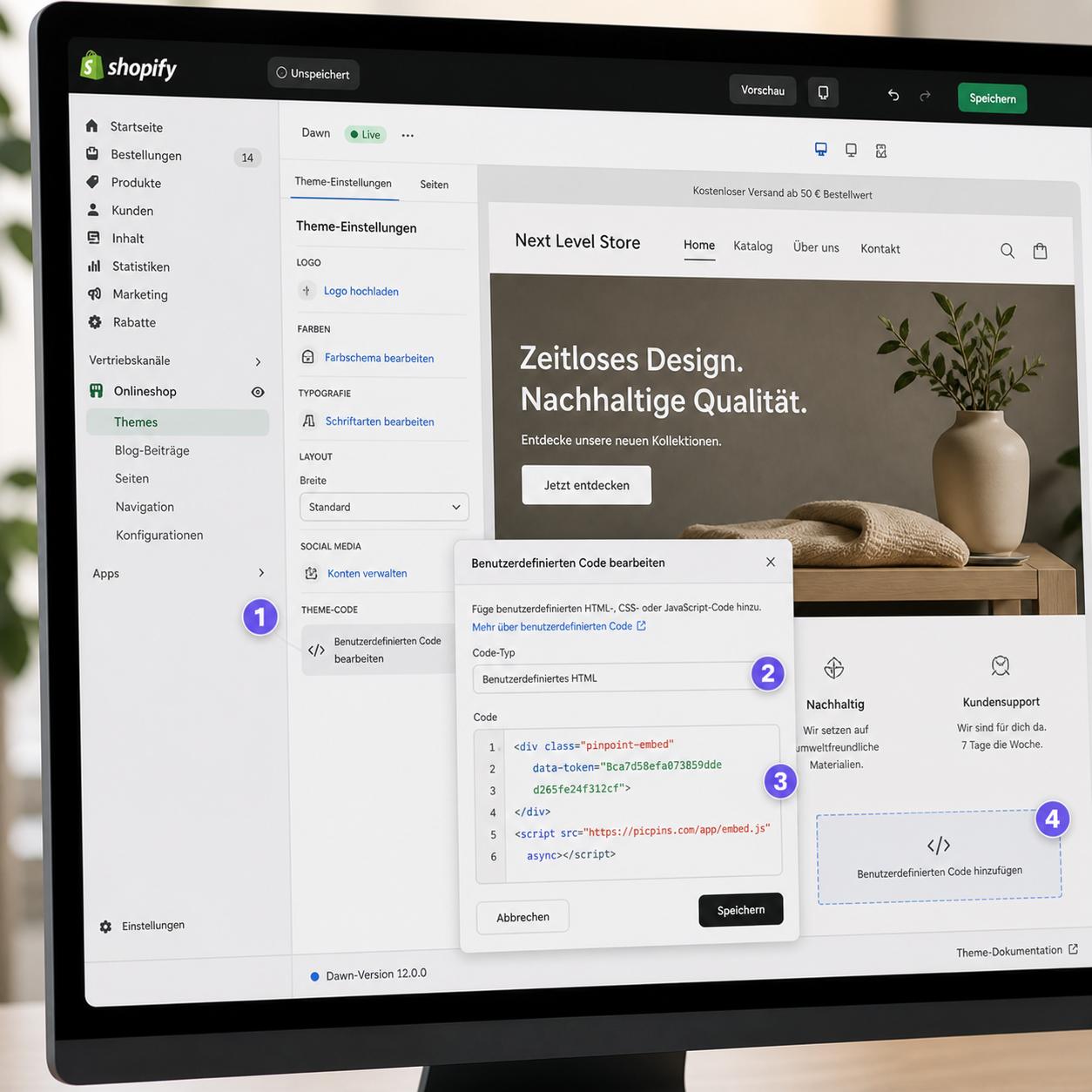
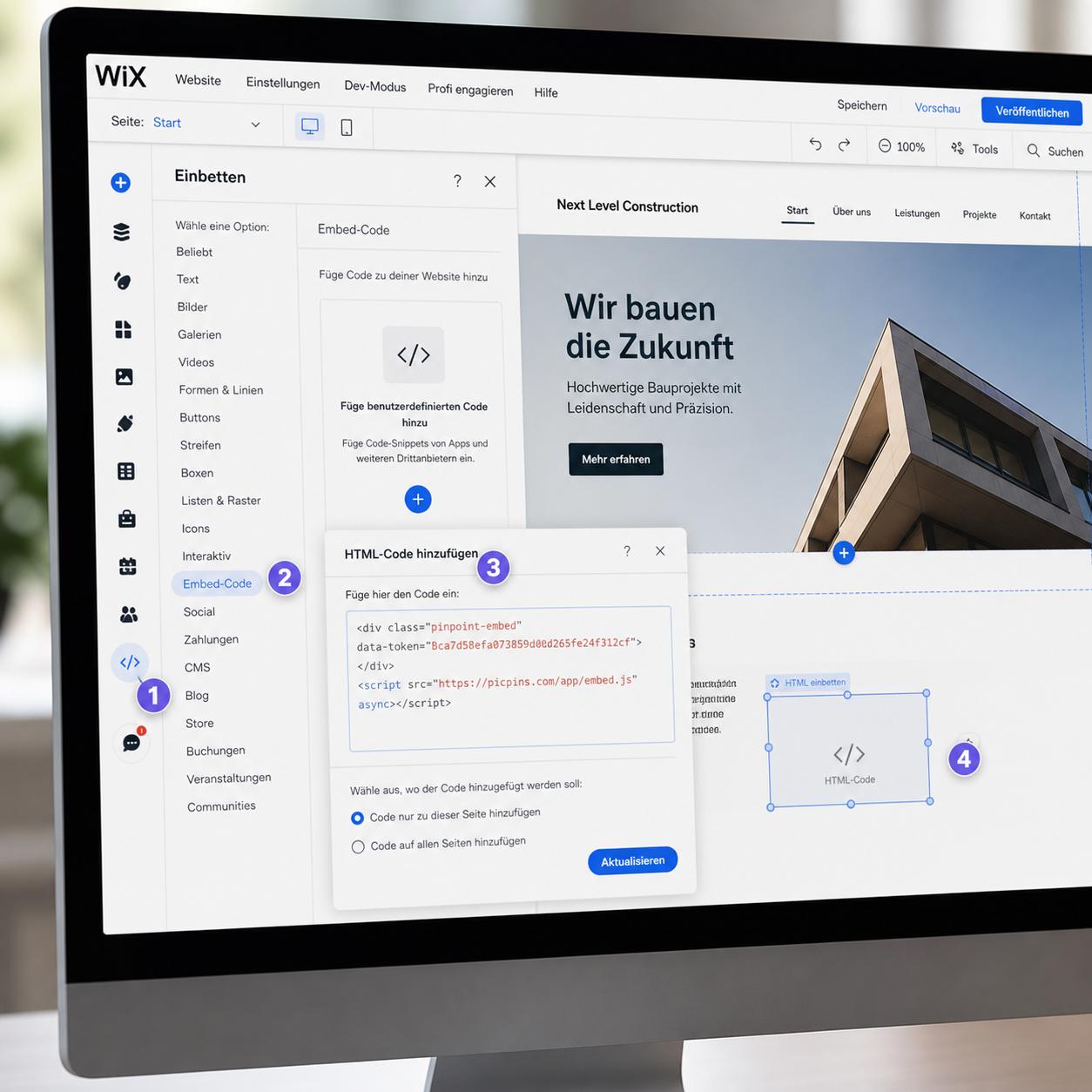
Once every room is marked, the result can be checked right inside the editor with a built-in preview. The Embed button then generates a snippet of code that can be pasted into a real estate agent's own website, into a listing that supports HTML, or onto platforms like WordPress.
Is it worth the effort for every property?
For a single studio apartment, probably not. But as soon as multiple rooms, a larger floor plan, or special features come into play, the interactive presentation saves the viewer noticeable time. In practice this translates into longer time spent on the listing page and more qualified inquiries, since prospects have already formed a clearer picture of the property before the first call.
A second benefit: multiple views of the same property can be bundled into a single project. Floor plan, exterior view, and a photo of the bathroom share one embed — the visitor switches between views inside the embed without leaving the page. This is especially handy for apartment buildings or units with basement and parking spaces.
What does it cost?
The Free plan is enough to maintain three properties in parallel. For regular marketing activity and to remove the picpins logo from the embed, the Pro plan is cheaper than most commercial 360-degree solutions. There's no software to install — the editor runs in the browser, and images are hosted on the picpins servers.