Interactive Images in TYPO3: Plain HTML, Image Map Wizard, and Modern Solutions
TYPO3 historically even had its own image map wizard. How to add clickable images today — native, via plain HTML, or with external tools.
TYPO3 and interactive images
TYPO3 is the CMS for enterprise websites with complex structures. That's exactly why it has known special tools for interactive images for years — some built in, some via extensions. Here's the current state and how to do it right.
A brief history
Older TYPO3 versions had an image map wizard directly inside the image content element. You could insert an image and draw rectangles on a small preview that turned into links. With TYPO3 v9, the standard element was reworked and the classic wizard isn't enabled in every install anymore. Current installs get the functionality either through the imagemap extension from the TYPO3 Extension Repository or through manually entered HTML maps.
Method 1: Plain HTML — the classic way
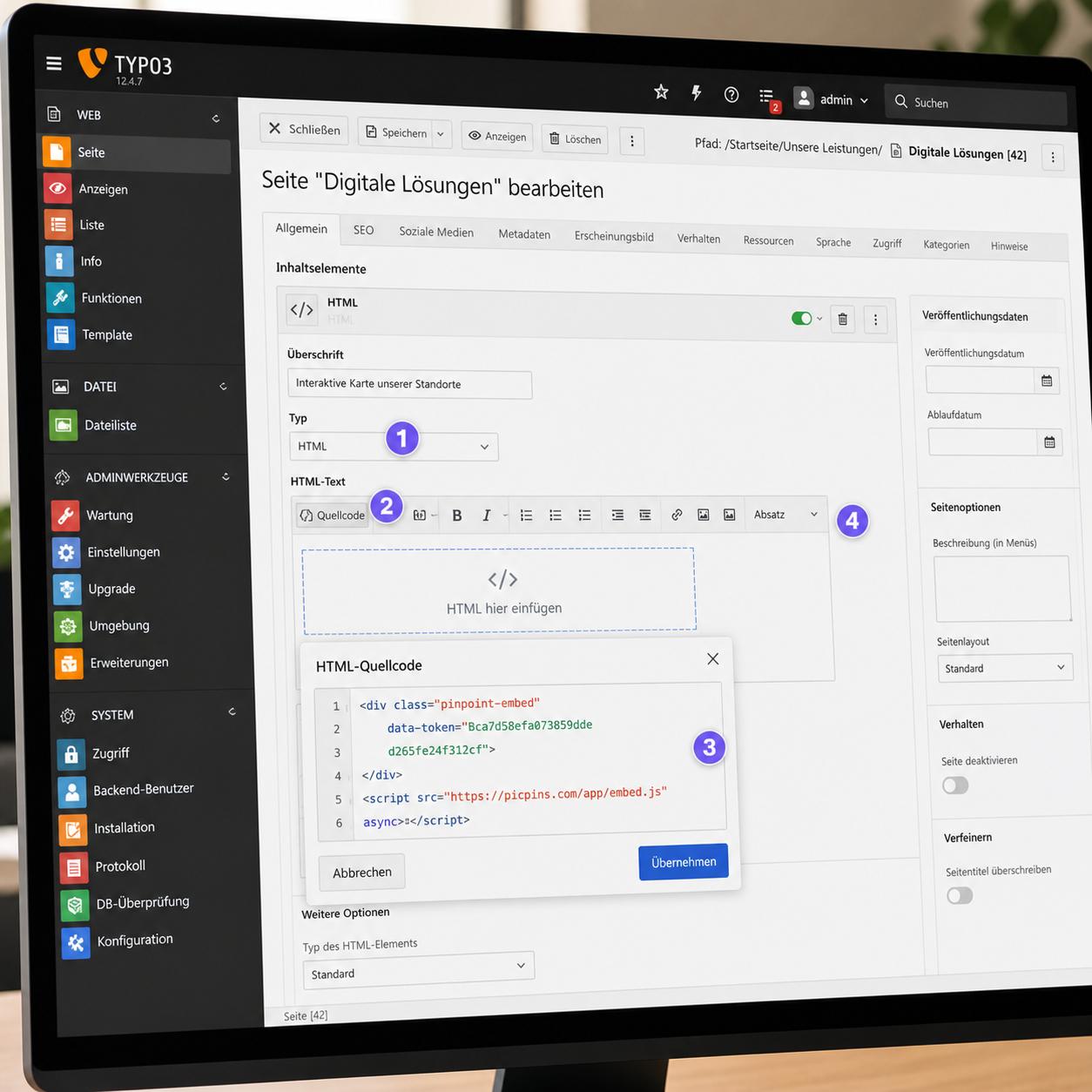
The "Plain HTML" content element lets you place arbitrary HTML directly on the page. In the backend, navigate to the page where the image should appear. New content element → Special elements → Plain HTML. Paste the image map code into the HTML field. Save, check the frontend.
In some TYPO3 setups the Plain HTML element is disabled for editors for security reasons. If the menu item is missing, ask the TYPO3 admin to enable it via the Backend User Group access list.
Method 2: Image map extension
In the Extension Repository (TER) you find extensions like imagemap or jp_imagemap that bring a visual editor back into the image element. You create a normal image element and define the clickable regions via drag and drop right on the image preview.
Once the extension is installed and active: insert an Image content element, pick the image from FAL. In the "Imagemap" or "Hotspots" tab, draw the regions. For each region define a link, link title, and optionally tooltip text. Save.
Before installing, check whether the extension is compatible with your TYPO3 version and actively maintained.
Method 3: External hotspot tools via embed
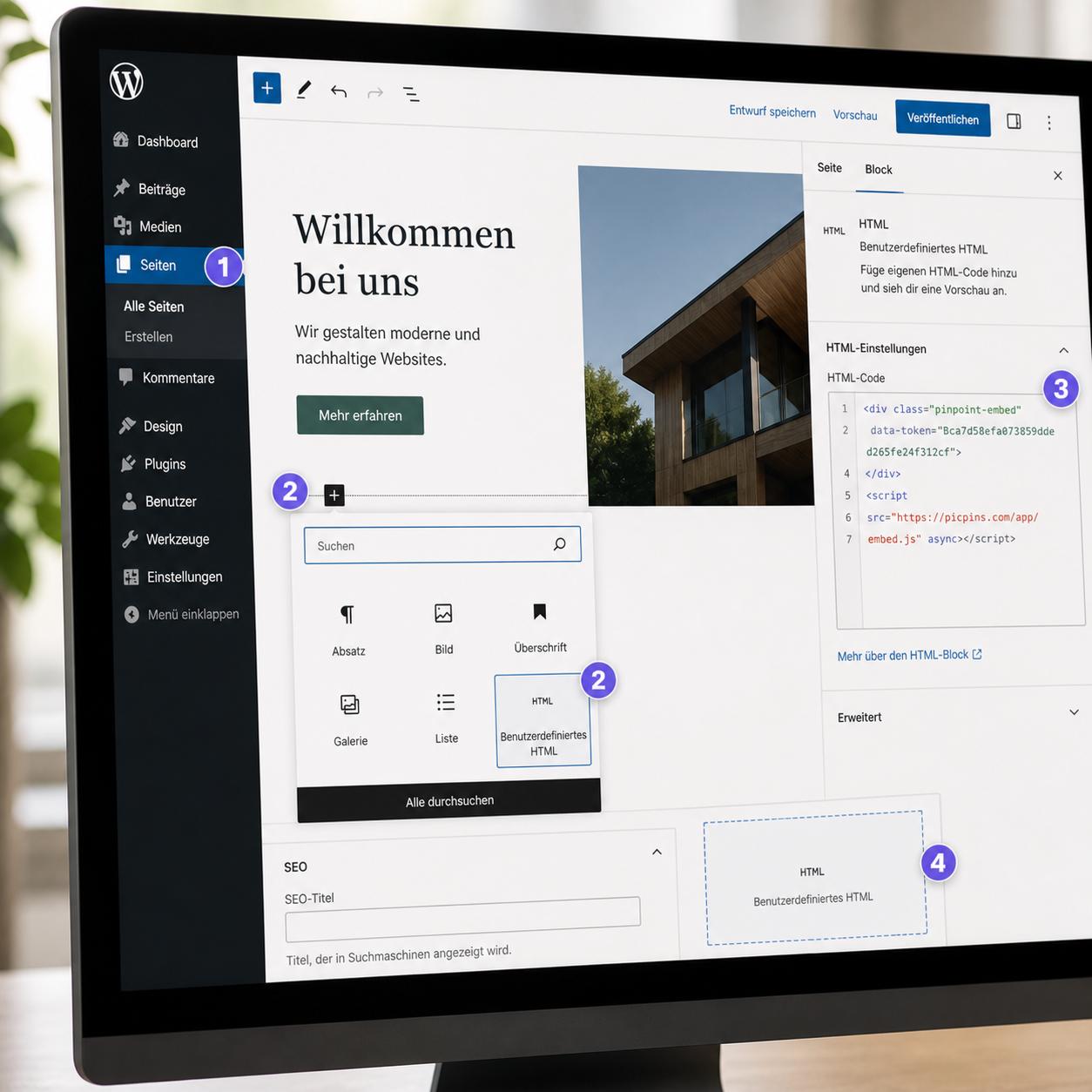
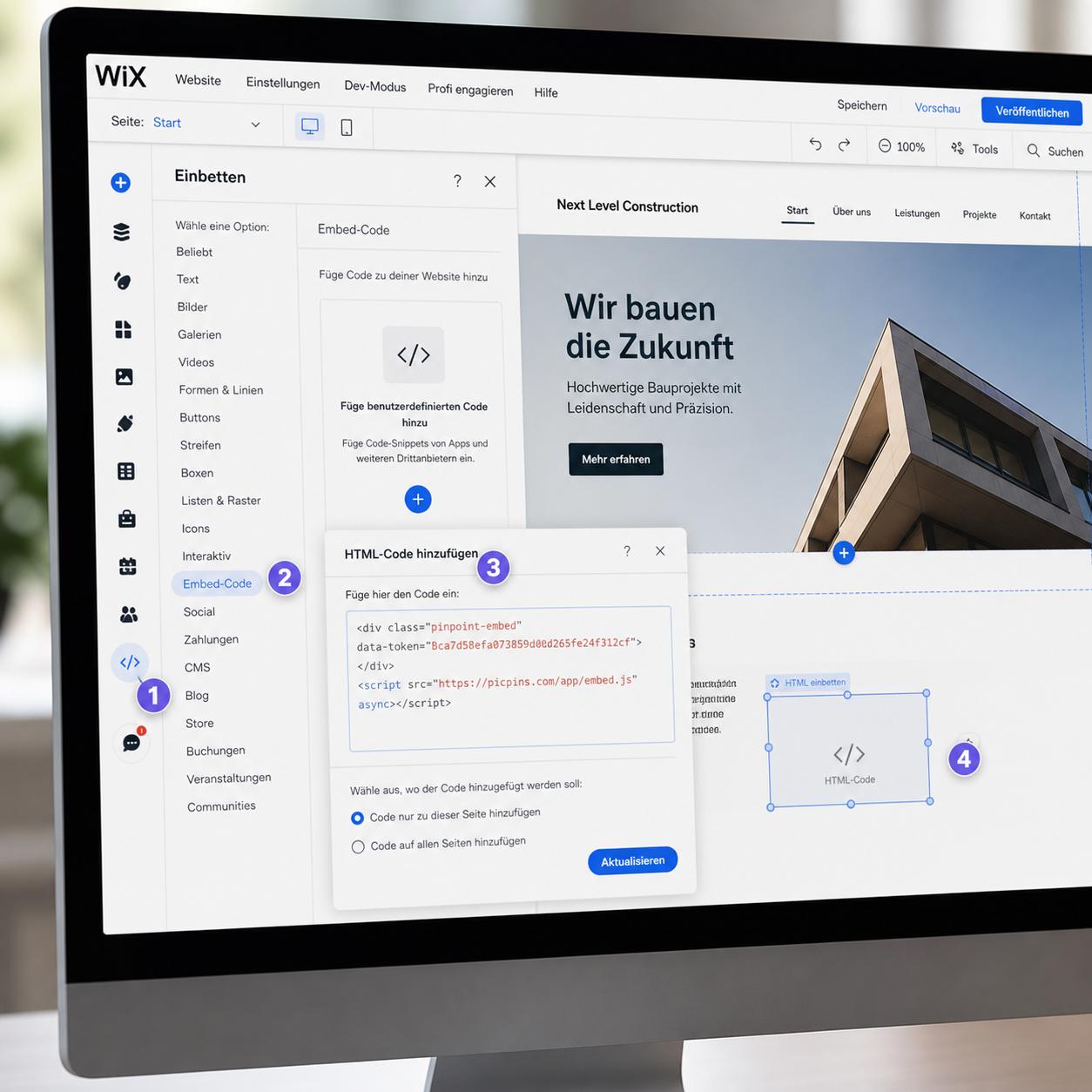
For demanding requirements — tooltips with images, multilingual content, frequent updates without backend login — an external tool is often more pragmatic. Paste the embed code from picpins or similar providers into a Plain HTML element, done.
Don't forget TypoScript configuration
If your TYPO3 project works with TypoScript content output (keyword tt_content.html), HTML content may be filtered or transformed unintentionally. For troubleshooting, check the TypoScript configuration — typically config.htmlSpecialChars or page.config.removeDefaultJS.
Performance in TYPO3
TYPO3 caches pages server-side. If you use an external embed solution and the provider updates its script, your visitors see the new version immediately because it loads client-side. Content from the image map extension is captured by the TYPO3 cache — changes need a cache clear.
Recommendation
For a simple image map on one page: Plain HTML is enough. For regular content with tooltips: image map extension. For demanding applications with touch interaction, multilingual content, and frequent updates: external tool via embed.